
Detail Pages
Problem
After navigating through panels or a top drawer, a user discovers her desired content (e.g., a movie she wants to watch). This content has a distinct and necessary set of metadata that should be prominently displayed, including a plot summary, list of cast members, ratings, and reviews.
Solution
The layout of the detail pages should be consistent within an app, even if the data types and attributes will vary from one page of content to the next. Sectioned detail pages allow users to quickly scroll to or click through to their desired content, while maintaining easy access to an application's primary functions. Consistent placement of the action buttons (e.g., Play, Buy, Share, Favorite) and section navigation will assist the user with navigation, making for a more comfortable browsing experience.
How to Use
Metadata should be segmented into discrete containers with labeled dividers. The most important information should be placed at the top of the page, in the first block. When appropriate, a thumbnail image should be included.
Make important pieces of data stand out visually by using a distinctive size, color, spacing, contrast, etc. The content in each section should be consistent in its visual representation, distribution, alignment, and spacing from other sections.
Each block should be shorter than the height of the viewable content area, to allow enough room for the next block to peek into view. If a block includes a long description, use a More/Less button with an expandable text field to show/hide additional text that would otherwise not fit in the viewable content area. Only blocks with expanded text fields may be taller than the height of the viewable content area.
If a block includes a long list of thumbnail images, only show a single row. Use a More button to open the full list of thumbnails in the next panel.
Detail pages with a lot of sections may be divided into two columns, one for the sectioned details (e.g., plot summary, cast, reviews) and the other for a Jump to Anchor Menu and any premium action buttons that deserve additional attention (e.g., Watch or Buy).
Example
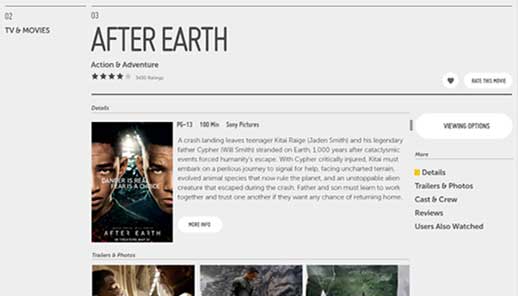
Sectioned Detail Page: Top
This is an example of a Sectioned Detail Page for a movie; the same design may be easily applied to a TV show, CD, or other such item.
A Jump to Anchor Menu is included on the right side of the panel to let the user easily jump to different sections in this view.
The Jump to Anchor Menu and large action buttons above will remain fixed on the right while the user scrolls through the main content area on the left.
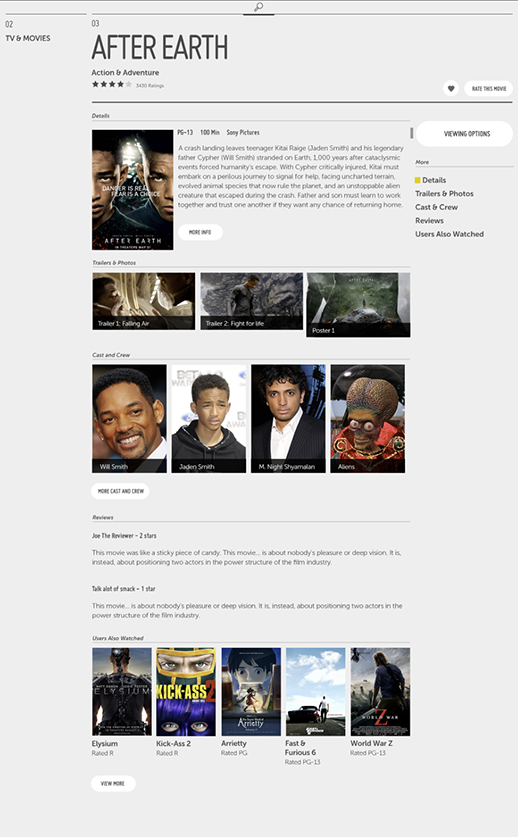
Sectioned Detail Page: Full Panel
This is a visualization of the same Sectioned Detail Page without the frame of the TV, to demonstrate the length of the panel and the value of using sections.
Clicking the More Info button under the plot summary will expand the text field to show more details.
Clicking the More Cast and Crew button under "Cast and Crew", or the View More button under "Users Also Watched", will open a new panel with more content of the given type.
Clicking an item in the Jump to Anchor menu will automatically scroll the panel's content (on the left) to the corresponding section.
Why
A sectioned details page helps to keep the app hierarchy flat by making it easy to scroll through the most important information in each section using the Magic Remote Scroll Wheel or Conventional Remote 5-way. This, in turn, reduces the need to navigate in and out of additional panels.
What to Avoid
Do not enable vertical scrolling within a single section. All sections should scroll together as one unit.
Do not enable horizontal scrolling if there are additional sections, Jump to Anchor menus, or visible panels to the right or left of the current section. In such cases, horizontal scrolling will prevent 5-way users from easily accessing anything on either side of the current section.
Do not expand a list of thumbnails within the same panel. This will cause technical errors.
Related Topics
Patterns: Acting on Data, Jump to Anchor, Loading